Audio Extractor for Free is an easy-to-use and totally free MP4 to MP3 converter. With this audio extractor, you are allowed to convert MP4 videos to interesting MP3 music with fast speed and high audio quality. Now you can get your favorite MP3 music to enjoy in your favorite portable devices.
What is MP3?
MP3 format, short for MPEG-1 Audio Layer 3, a revolutionary digital audio format, is developed by Fraunhofer-Gesellschaft and Thompson Multimedia in the late 1980s and brought to the mainstream through the Internet in 1997. It is a common audio format for consumer audio storage, as well as a standard encoding for the transfer and playback of music on digital audio players. MP3 is a near-CD quality file format for sound files and is very popular for music on the web. As an audio-specific format, MP3 becomes more popular when people use it to swap music online because of its powerful compression.
MP3 is a non-proprietary format that can be played with a whole host of different players. For users who have large music collections, it is a good choice to backup and enjoy.
MP4 to MP3 Conversion Guide
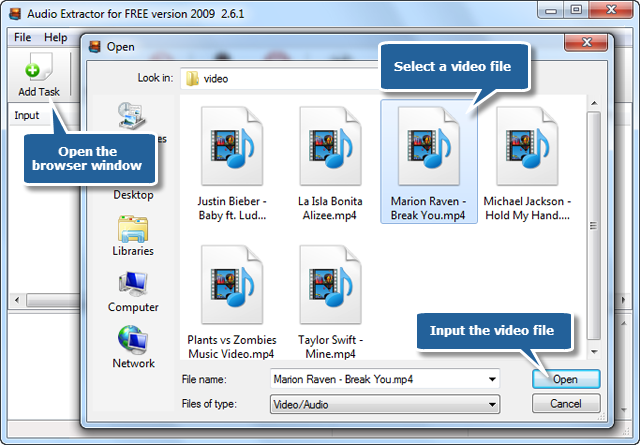
1. Launch Audio Extractor for FREE. Click “Add Task” and a browser window will be activated. Choose MP4 file you want to extract and click “Open” to input MP4 video.
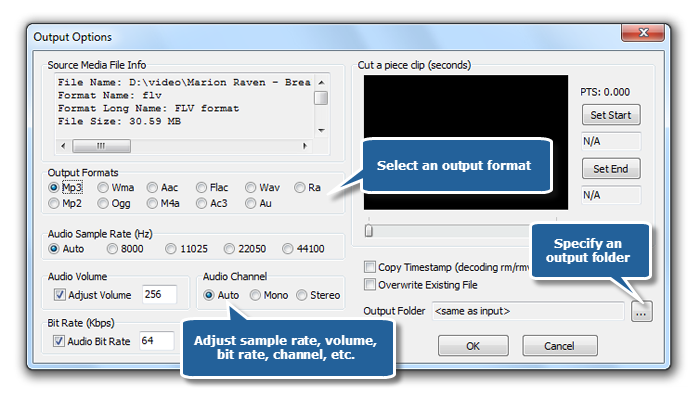
2. When you add video files, an “Output Options” window pops up. Then, select “MP3” as an output format in this window (Other supported formats: WAV, WMA, AAC, FLAC, RA, MP2, OGG, M4A, AC3 and AU). You can choose an output folder in “Output Folder” area, or the extracted sound will be saved to the folder the same as the original video, with the name automatically changed. You can also adjust many other parameters like sample rate, volume, bit rate, channel, etc.
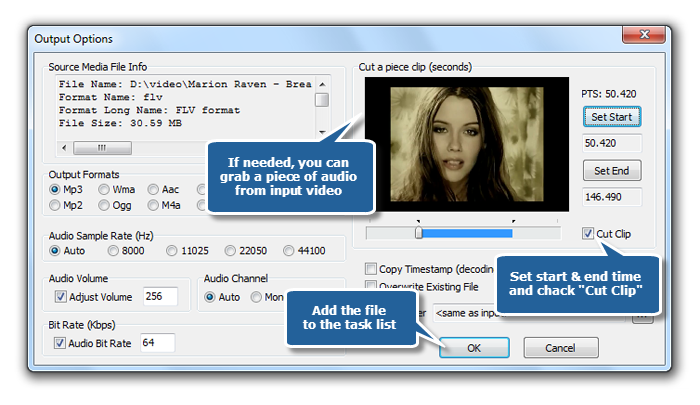
You can clip a piece of MP3 music from video. Just click “Set Start” & “Set End” buttons to specify the start & end time you want to extract and then check the “Cut clip” (After the extraction, the audio clip will be saved instead of the full-length mp3 file). Then, click “OK” to input video file to the task list (If needed, it allows you to add more video files before conversion; click “Remove” or “Clear Task” button to remove one or all the added video files).
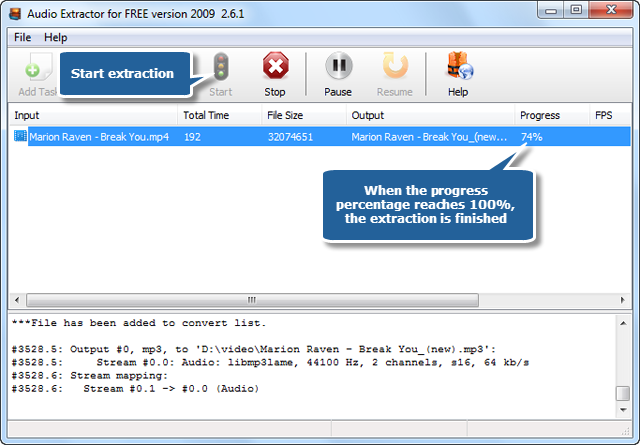
3. Click “Start” to start extraction. Within few seconds, the progress information will be displayed. When the process percentage reaches 100%, the extraction is completely finished. At the bottom of the extractor, you can see detailedlog information of the whole conversion.