Audio Extractor for FREE is an absolutely free application that extracts audio, sound, or background music from home movies,YouTube videos, or any other video file without loss of sound quality. This professional video to audio converter gives you the power to convert videos to MP3, AAC, AC3, WMA, FLAC, OGG, WAV and many more audio formats. It provides customizable audio encoding parameters for professional needs.
What is Audio Extraction?
Digital Audio Extraction (DAE) is a more formal phrase applied to the ripping of audio CDs. Ripping is distinct from simple file copying, in which the source audio/video is not formatted for ease of use in a computer file system. For example, the hierarchy of files making up the audio/video data on a DVD-Video disc can be encoded into a singleMPEG file. In addition, the copied data are often compressed with appropriate codecs. Ripping is often used to shift formats, and to edit, duplicate or back up media content. Media files released on the Internet may describe the source of the rip in their names, e.g. DVD-Rip.
Audio extraction is very handy when you want to get a song out of music videos or live performance DVDs.
Audio Extraction Guide
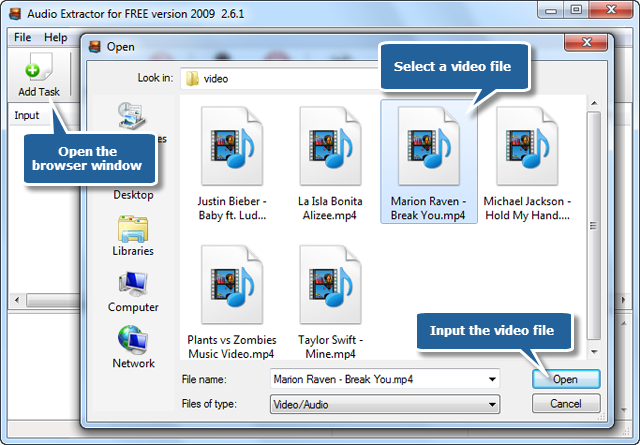
1. Launch Audio Extractor for FREE. Click “Add Task” and a browser window will be activated. Choose the file you want to extract and click “Open” to input video file.
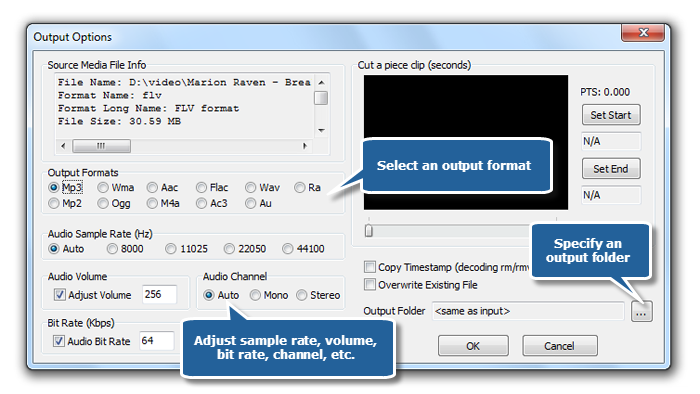
2. When you add video files, an “Output Options” window pops up. Then, select an output format in this window (The supported formats: MP3, WAV, WMA, AAC, FLAC, RA, MP2, OGG, M4A, AC3 and AU). You can choose an output folder in “Output Folder” area, or the extracted sound will be saved to the folder the same as the original video, with the name automatically changed. You can also adjust many other parameters like sample rate, volume, bit rate, channel, etc.
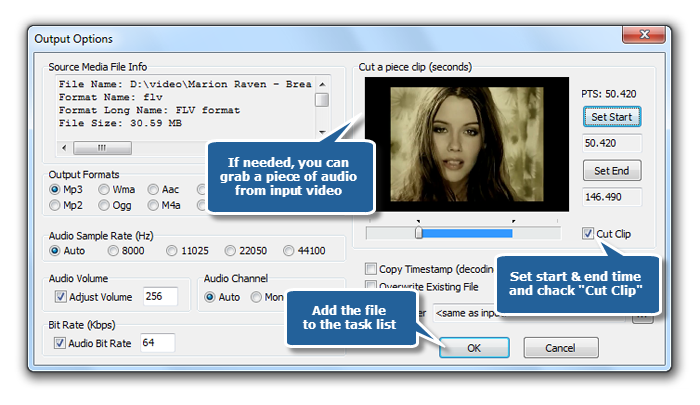
You can clip a piece of audio from video. Just click “Set Start” & “Set End” buttons to specify the start & end time you want to extract and then check the “Cut clip” (After the extraction, the audio clip will be saved instead of the full-length audio file). Then, click “OK” to input video file to the task list (If needed, it allows you to add more video files before conversion; click “Remove” or “Clear Task” button to remove one or all the added video files).
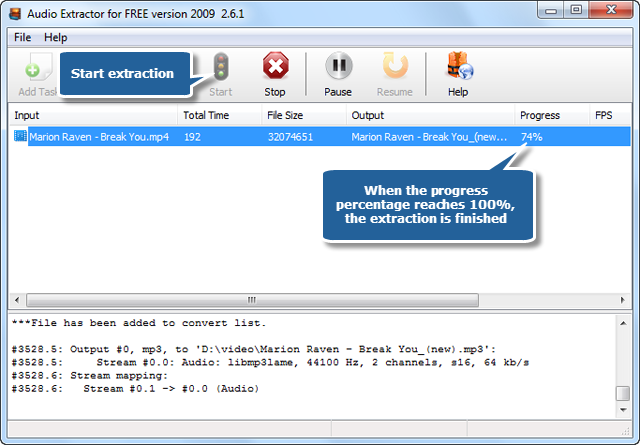
3. Click “Start” to start extraction. Within few seconds, the progress information will be displayed. When the process percentage reaches 100%, the extraction is completely finished. At the bottom of the extractor, you can see detailedlog information of the whole conversion.