
Audio Convert Merge Free is an efficient audio joining program that designed for personal computer. It helps you combine, merge and join MP3, WAV, WMA and many more audio files without recompressing and quality loss with amazing speed. To save you time, the joiner also supports processing files in batches & customizing the output parameters. It will be definitely a new generation of audio merger.
What is Resampling (Sample Rate conversion)?
Sample rate conversion is the process of converting a (usually digital) signal from one sampling rate to another, while changing the information carried by the signal as little as possible. Sample rate conversion is needed because different systems use different sampling rates, for engineering, economic, or historical reasons. The physics of sampling merely sets minimum sampling rate (an analog signal can be sampled at any rate above twice the highest frequency contained in the signal), and so other factors determine the actual rates used.
For example, different audio systems use different rates of 44.1, 48, and 96 kHz. As another example, American television, European television, and movies all use different numbers of frames per second. Users would like to transfer source material between these systems. Just replaying the existing data at the new rate will not normally work — it introduces large changes in pitch (for audio) and movement as well (for video), plus it cannot be done in real time. Hence sample rate conversion is required.
To join the audio files, an audio joiner will have to resample all the input files to the same sample rate.
Audio Joining Guide
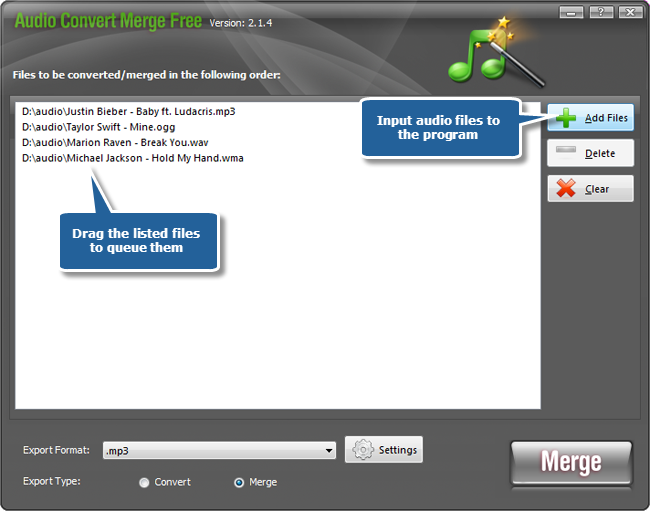
1. Launch Audio Convert Merge Free. Add audio files to the merging list by clicking “Add Files”. What’s more, you can just simply drag & drop or copy & paste the files to the task list. It is available to adjust the sequence of merging list by dragging the added files. Click “Delete” or “Clear” button to remove one or all the added files if needed.
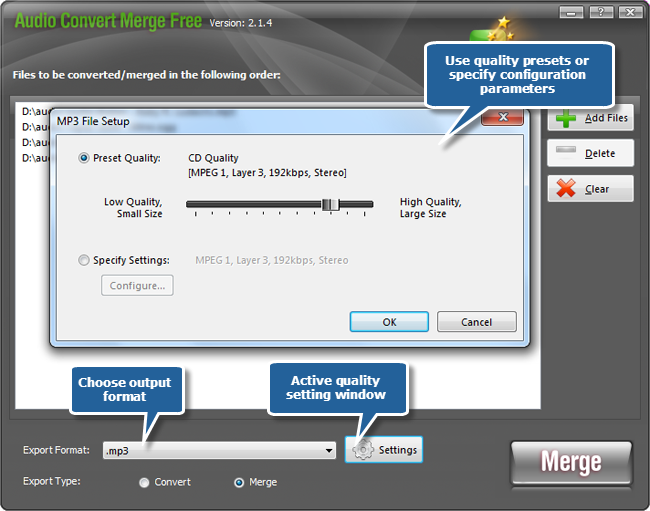
2. Choose an output format among MP3, WAV, WMA and OGG from the dropdown menu of “Export Format”. Furthermore, you are able to adjust the output quality with the well-configured presets or specify the configuration parameters to meet your demands.
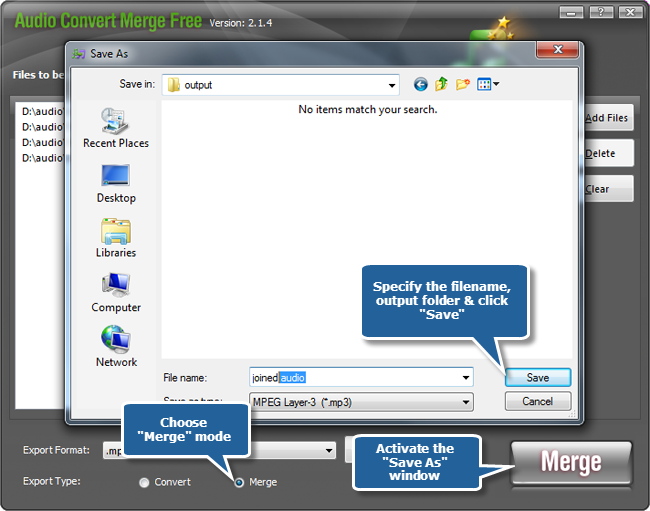
3. After adjusting output settings, choose the “Merge” mode from the “Export Type”. Click “Merge” to select the output folder and give a filename for the merged audio file in the browser window and click “Save” to start merging audio files. The audio files are completely merged when the process bar disappears. Now, you can enjoy the merged song on your music player.
To convert the audio files, just choose “Convert” mode & the added files will be converted one by one to the specified output folder and format.