
CyberPower Video Switch is a feature-rich video converter to convert your video files. This professional video converting tool enables you to convert AVI to MP4 so that you can play them on MP4 player. With the wizard guide and the simple format preset, you can precisely convert the video files for various purposes. Please follow this tutorial for your AVI to MP4 conversion.
What is MP4?
MP4, a container format that can combine different multimedia tracks into a single file, was developed by MPEG (Motion Pictures Experts Group), an international organization that develops and manages publishing standards for digital audio and video. MP4 files support text and graphics. More advanced MP4 files will contain streams for 2D and 3D animation and user interactivity (such as DVD menus) MPEG-4, the video compression standard behind MP4 files, is an open standard that is publicly available for developing software or hardware. All files encoded in an MPEG-4 standard are associated with the extension “.mp4”.
 MP4 is a popular format that can be played with a whole host of different players and cell phones. For users who have large video collections, it is a good choice to backup and enjoy.
AVI to MP4 Conversion Guide
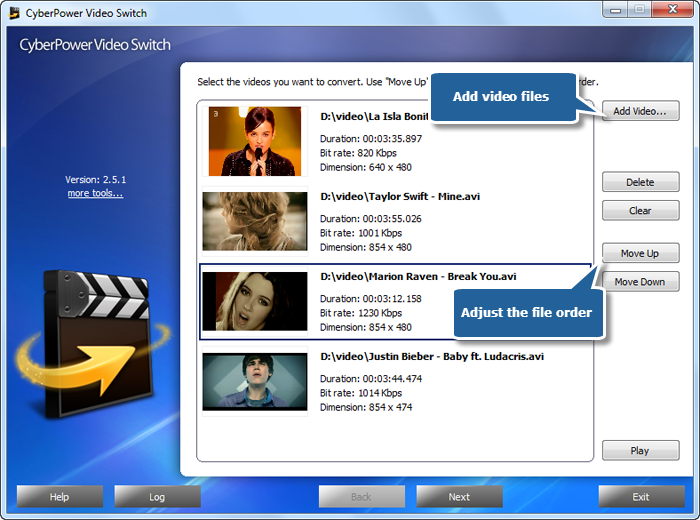
1. Launch CyberPower Video Switch. Add AVI files to the conversion window by clicking “Add Video…”. It allows you to add a great number of video files. With the conversion window, you can see the detailed information of the added files. You are allowed to use “Delete” or “Clear” to remove the unwanted files and “Move Up/Move Down” to change the order according to your schedule. There’s a “Play” button to play the selected file with the media player in your system.
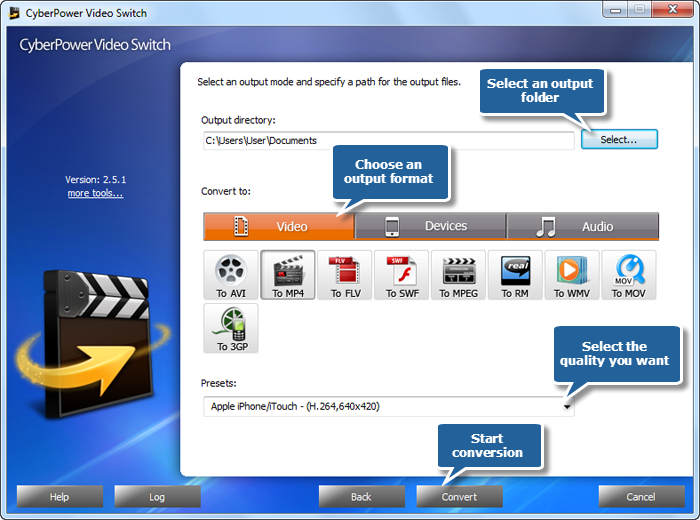
2. Click “Select…” to specify an output folder from your computer. Click “Video” tag and choose “To MP4” as an output format. Another 2 tags: “Devices” & “Audio”, containing various supported formats, are also available for you. For specific needs, you can specify output quality with many well-configured quality presets for every format in the“Presets” list.
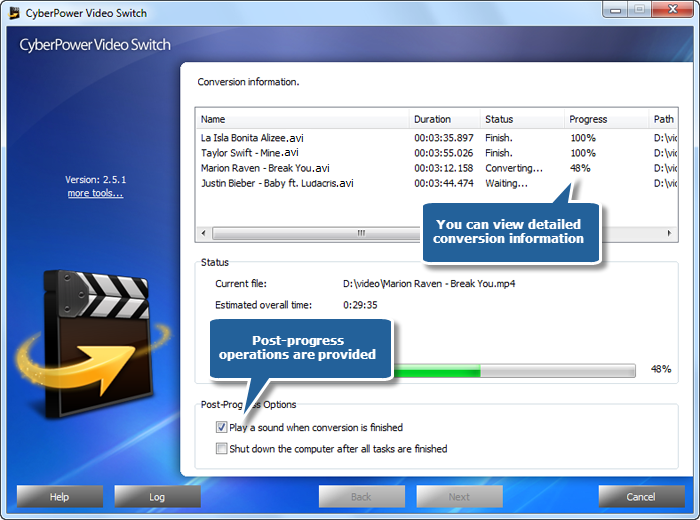
3. After you hit “Convert”, some conversion information and a progress bar will be displayed within just few seconds. There are also post-process options to choose (Auto play a sound or shutdown the computer after conversion).
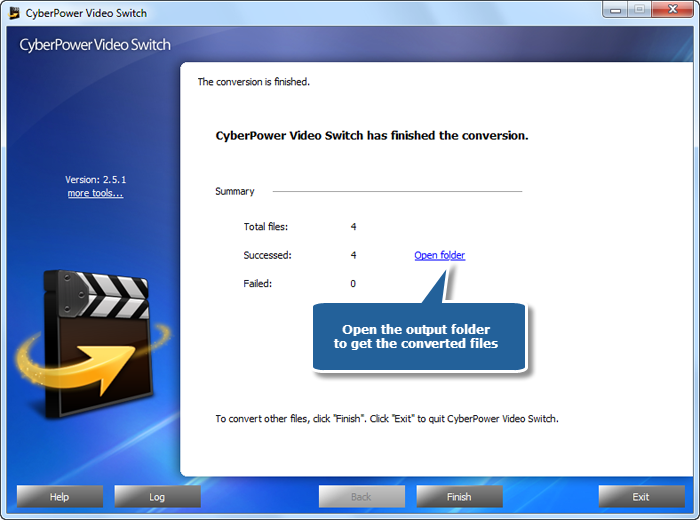
When the conversion is finished, a general summary about the conversion will be displayed. You are allowed to directly open the output folder by clicking “Open folder” to play the converted video files on your MP4 player.
The log information for the whole conversion is viewable and you can even save the log file to analyze.