CyberPower Video Switch – a smart video conversion tool, is the most renowned video converter for converting video files between various formats like AVI, MPG, MPEG, DAT, MOV, ASF, FLV, and so on. At the same time, it maintains fast converting speed and excellent video quality. This video converting program also has the ability to convert video files to audio format or portable devices like PSP, BlackBerry, iPod, etc.
What is Video Conversion?
Video conversion is the process of taking video files and converting them to other industry standard video formats for use on your computer. This process is done with commercial grade video conversion equipment installed in powerful computers. Converted video is normally stored on CD, DVD or hard drives. Up to two hours of video can be converted and stored on a single CD ROM.
Different players support different media formats. If you want to watch video, you have to make it playable for the player software or device.
Video Conversion Guide
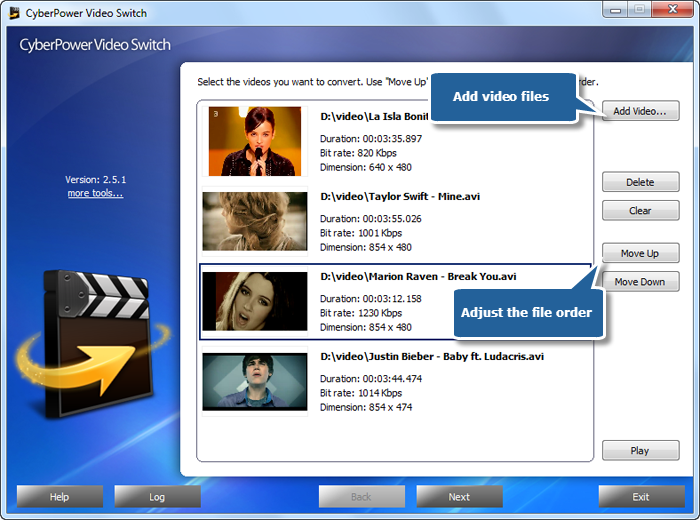
1. Launch CyberPower Video Switch. Add video files to the conversion window by clicking “Add Video…”. It allows you to add a great number of video files. With the conversion window, you can see the detailed information of the added files. You are allowed to use “Delete” or “Clear” to remove the unwanted files and “Move Up/Move Down” to change the order according to your schedule. There’s a “Play” button to play the selected file with the media player in your system.
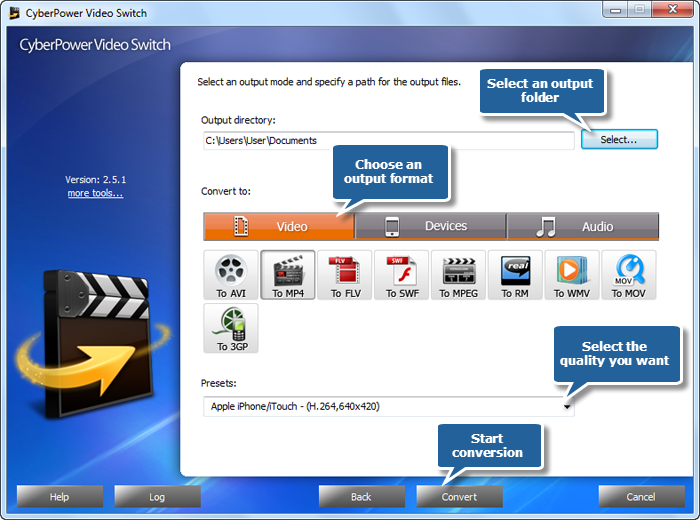
2. Click “Select…” to specify an output folder from your computer. Click “Video” tag to choose an output format. Another 2 tags: “Devices” & “Audio”, containing various supported formats, are also available for you. For specific needs, you can specify output quality with many well-configured quality presets for every format in the “Presets” list.
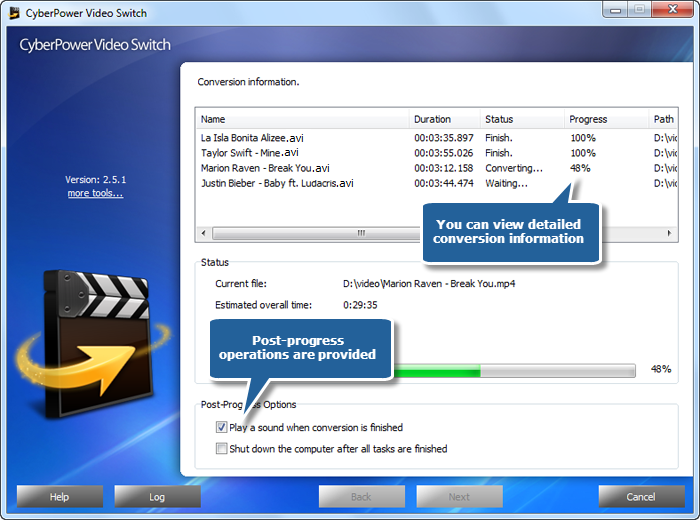
3. After you hit “Convert”, some conversion information and a progress bar will be displayed within just few seconds. There are also post-process options to choose (Auto play a sound or shutdown the computer after conversion).
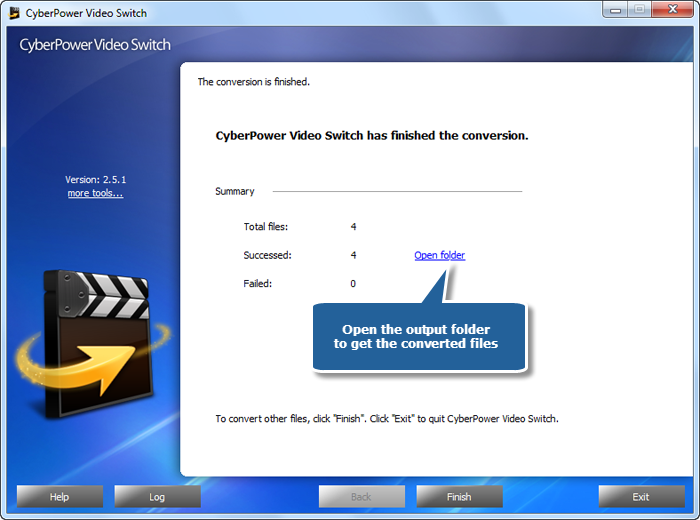
When the conversion is finished, a general summary about the conversion will be displayed. You are allowed to directly open the output folder by clicking “Open folder” to play the converted video files.