
How about ripping audio CD by simple left clicks? CyberPower Disc Creator will be a smash hit! It is an advanced audio CD ripper that comes packed with features. It empowers you to extract digital audio tracks directly from CD to your HDD. Now you can freely enjoy the beloved albums in media player software & portable devices.
What is CD Ripping?
CD ripping is the process of copying or extracting data from a CD to a computer. Commonly used to rip audio filesfrom CD and convert them to WMA, WAV, MP3 & many more, storing them as digital data on your PC’s hard disk.CD/DVD ripping can be used to rip video files such as from DVD, a DVD has both video and audio on it with a special format suitable for playback. But it can also be placed into a computer and copied onto a hard drive. This requires using special software and the process is called “ripping”. Despite what the name implies, the DVD is not damaged in any way.
If you have a large music CD collection, we suggest you rip all of them for digital backup.
Audio CD Ripping Guide
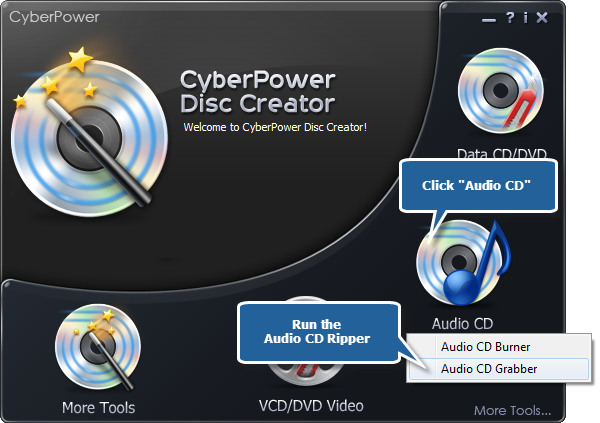
1. Launch CyberPower Disc Creator. Then, insert an audio CD to the CD drive, click the “Audio CD” and choose “Audio CD Grabber” to run the ripper wizard.
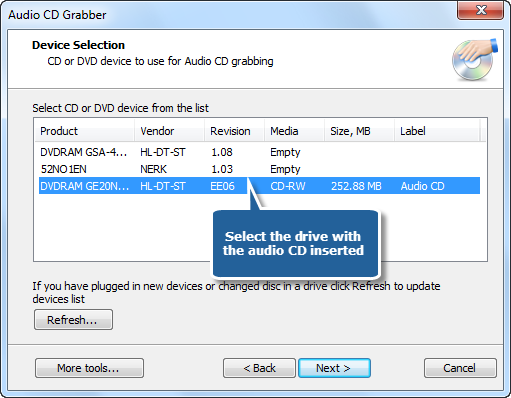
2. The ripper scans your system for the available devices. Choose one of the usable burning drives from the list (the system will select it by default if there is only one). If you plugged in new devices or changed disc in the drive, you canupdate the devices list by clicking “Refresh” button.
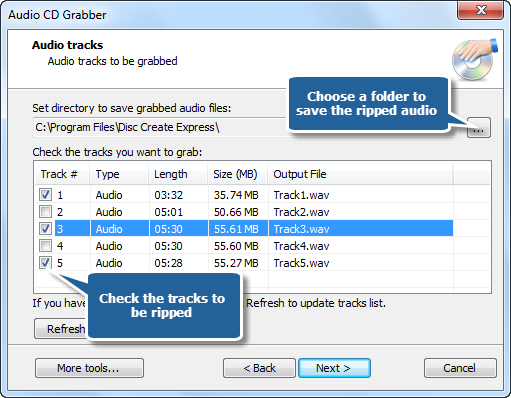
3. Choose an output folder used for saving ripped audio files. Check the listed audio tracks to that you want to rip. You can click “Refresh” to update tracks list if you have changed disc in the drive.
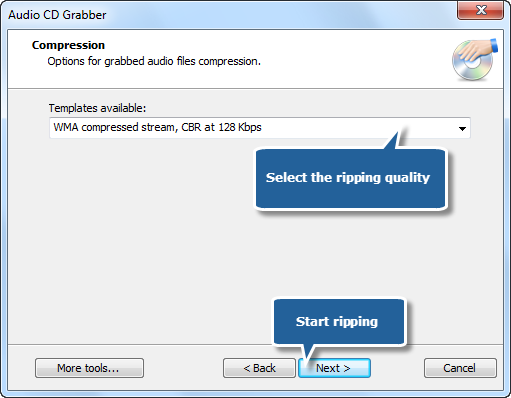
4. Choose one of the compression types from the available templates to fulfill your needs. Click “Next” to start ripping and wait until the process bar reaches 100%. The disc will eject after the audio CD has been completely ripped.
 The most important factors that affects speed are file size & the ability of the disc drive and your computer. Ripping music takes some time – please be patient.