
CyberPower Audio Editing Lab is a full featured professional audio and music editor which supports many advanced and powerful operations with audio data. This software lets you make and edit voice and other audio recordings. You can cut, copy and paste parts of recording and, if required, add effects like echo, fade, amplify, etc. Also, the user-friendly & full-featured interface is suitable for both beginners and advanced users.
What are Audio Effects?
Delay is a simple concept — the original audio signal is followed closely by a delayed repeat, just like an echo. The delay time can be as short as a few milliseconds or as long as several seconds. A delay effect can include a single echo or multiple echoes, usually reducing quickly in relative level. Delay also forms the basis of other effects such asreverb, chorus, phasing and flanging.
Audio effects makes sound perfect. For digitized cassette tapes, just use noise reduction tools to enhance the sound.
Audio Editing & Audio Effects Applying Guide
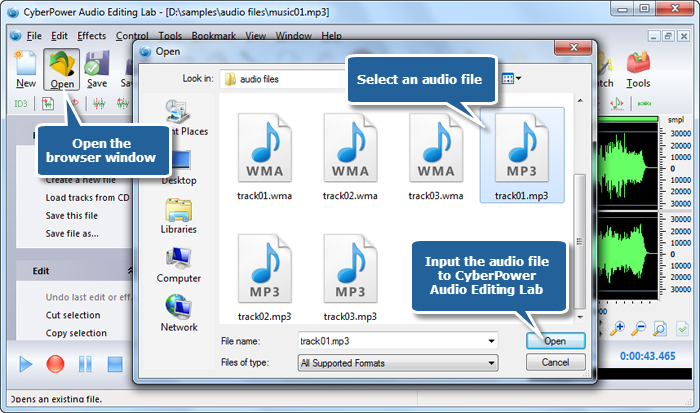
1. Launch CyberPower Audio Editing Lab. Click “Open” button and a window pops up. You can add an audio file as wanted from it to the waveform window. (You can add more than one audio file to the task window to edit.)
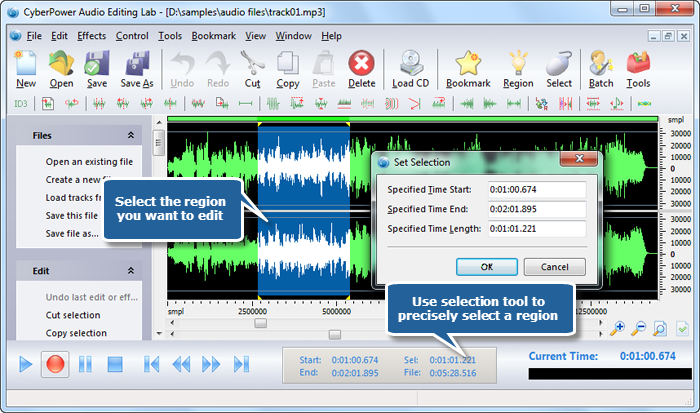
2. Select the region you want to edit. There are 5 ways to select a region: click anywhere of the waveform as a starting point and choose “Select to Start” or “Select to End” from the dropdown menu of the “Edit” to select the region of the file; click the left button and drag along with the waveform to the place wanted to be selected; specify the start & end of the section by dragging the sliders below the waveform window; activate the selection tool at the bottom of the editor to input the specific time to choose a region; click “Select All” in the dropdown menu of the “Edit” to select the entire file.
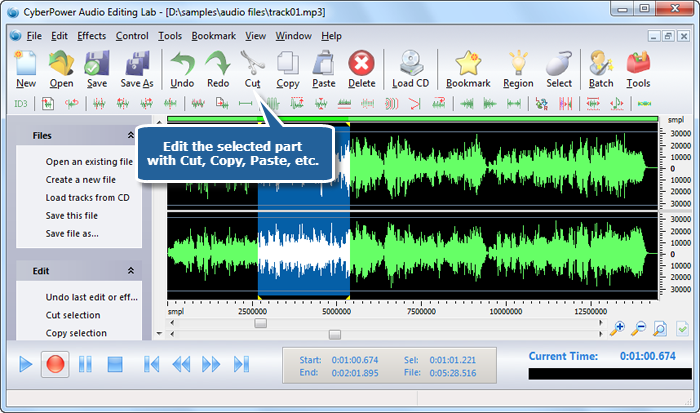
3. Now you can edit the selected region by clicking the buttons of cut, copy, paste, crop, delete and many more. Unlimited Undo & Redo help you correct the mistakes made during editing.
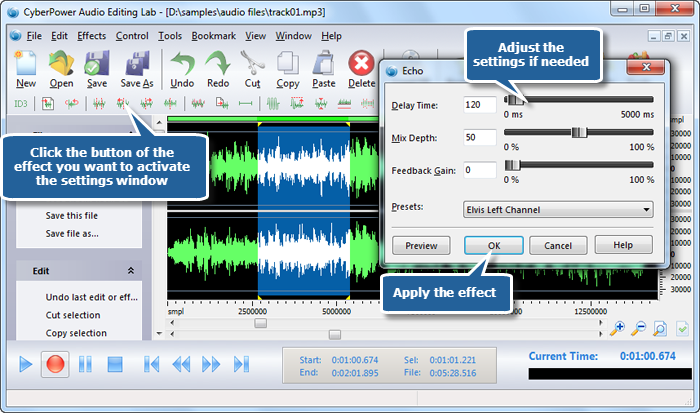
4. The provided audio effects includes echo, vibrato, fade in, fade out, chorus, amplify and so on. To add them, you just need to select the appropriate one from the dropdown menu of “Effects”. You can also click the effect buttons to apply them. The settings window of corresponding effect will be activated. Specify detailed parameters or apply some popular presets to adjust the effect. Click “Preview” to listen to the music before adding the effects to the waveform to make sure you get exactly what you want.
5. Click the “Save” button to save the changes to the original file. Or click “Save As” to save the changes to the defined destination with a new file or format. You can choose an output format and choose the preset quality or specify the configuration parameters of the output format, then click “OK” to save file.
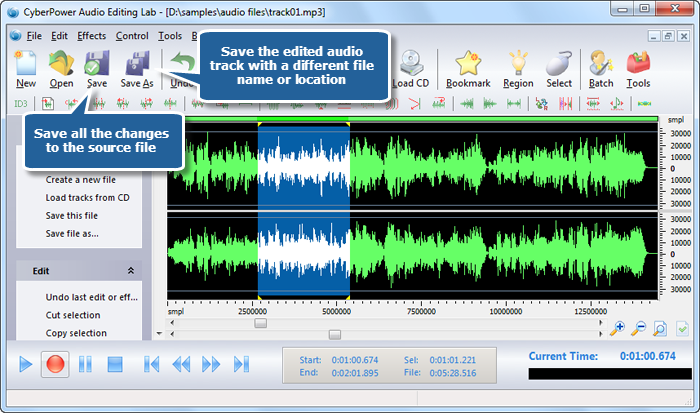
We suggest you use “Save As” to output the edited file unless you have backuped the original file.