
CyberPower Audio Editing Lab provides a full ranged solution for almost all workflow in audio editing, audio recording and audio converting field. It is also digital audio recorder designed for home studio recording. You can use it to record any music, your own voice or other audio, and edit or mix it with other audio or musical parts.
What is Sound Recording?
Sound Recording essentially means capturing a piece of sound onto a storage media, so as to archive it and review it afterwards. It involves the technical and creative aspects of recording sound for different media. It is not just storing sounds but also maintaining its quality, the playback of the recorded sound must be an exact imitation of the original sound that was recorded. To do this we need the proper equipment and some essential skills & knowledge.
No matter which recording program you are using, you can always choose the recording source in system recording mixer window.
Audio Recording Guide
1. Launch CyberPower Audio Editing Lab. Click “Record” button to choose the recording sample rate & channel in the pop-up window and click “OK” to activate audio recorder.
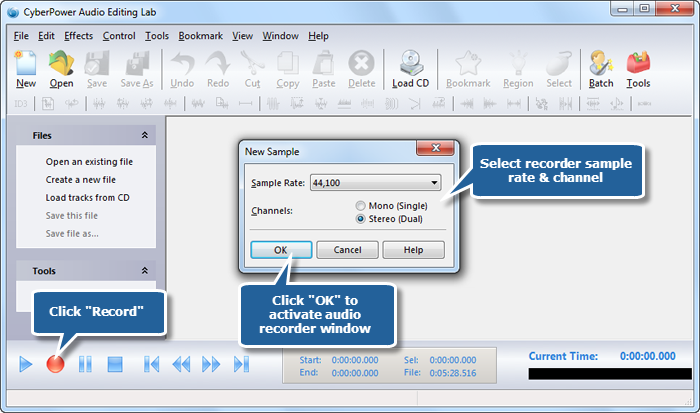
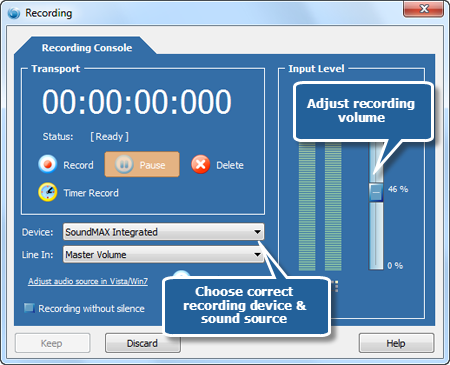
2. In the “Recording” window, choose a suitable recording device and sound source. Choose “Stereo Mix” if you want to record web radio or the sound played on your computer; Choose “Mic Volume” if you want to record the sound from microphone; Choose “Line In” if you want to record the sound from the multimedia devices connected to your computer; there are more options like “Phone Line”, “Aux Volume”, “Video Volume” and “CD Audio”. Adjust the recording volume as needed.
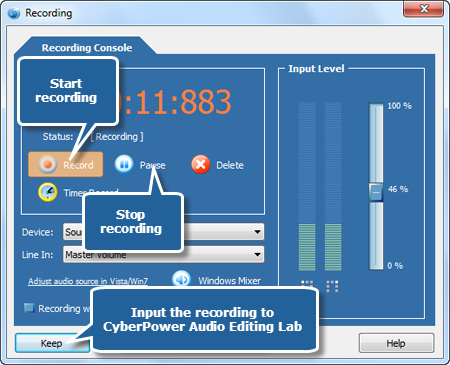
3. Click “Record” to start recording and click “Pause” to stop recording. Then, click “Keep” to input the recording to the waveform window of audio editor. Click “Timer Record” to set a specific time to automatically start recording. You also have the power to record without silence. A button to directly open the Windows Mixer is available.
4. Now you can edit the recording to meet your demands and add some cool audio effects for your audio masterpiece. To save the recording, just click “Save”. You can choose an output format and specify the output quality.
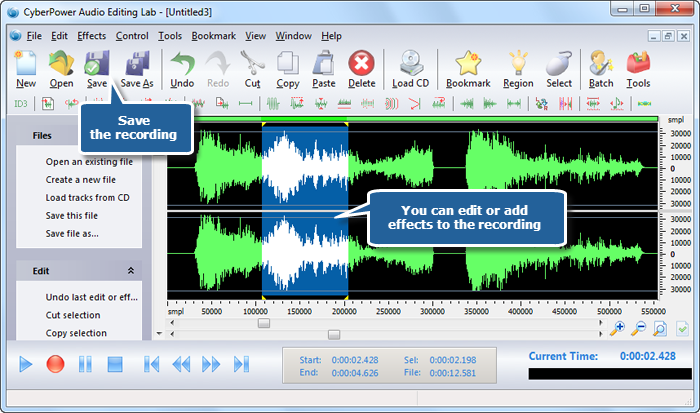
Adding some effects to your recording will also helps you get unique ringtones for your mobile phone.