|
Introduction
Step 1: Download, install and run Free Mp3/Wma/Ogg Converter
Step 2: Add files
to the list
Step 3: Choose
output settings
Step 4: Start conversion
Introduction
Free Mp3/Wma/Ogg Converter is a feature-rich audio converter
to convert your audio files to WAV, MP3, WMA, OGG, AAC, M4A,
FLAC and MP2. With the wizard guide and the simple format preset,
you can precisely convert the audio files for various purposes.
Please follow this tutorial for your WAV to MP3 conversion.
What you need:
All you need to convert WAV to MP3 is:
A computer with Free Mp3/Wma/Ogg Converter installed
Step 1: Download, install and run Free Mp3/Wma/Ogg Converter
Download Free Mp3/Wma/Ogg
Converter setup file from our website and install. Launch the
program by the desktop shortcut.

Step 2: Add files
to the list
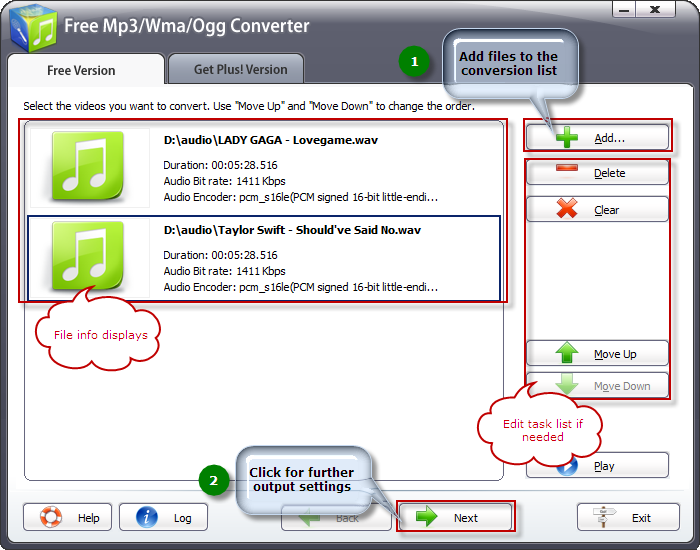
You can see the converter interface with the instruction for
your operation. Click "Add..." to add one or more WAV files
to the list. The detailed info of the files will display in
the window. You can also click "Delete" to remove the files
unwanted and "Clear" to remove all the files listed. Task order
can be arranged by "Move Up" and "Move Down".
Step 3: Choose output
settings
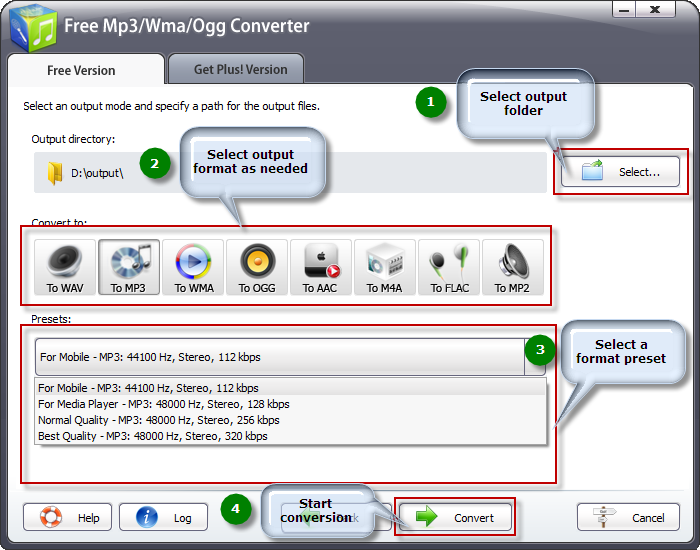
You can choose the output path by "Select..." button. There
are several buttons for you to choose output formats. Click
"To MP3" button. Then you should select a preset to adjust the
output quality as needed from the dropdown list below.
Step 4: Start conversion
Hit "Convert" button to start the conversion. You can see some
info of files being converted, like the duration, status and
progress of the conversion. There are conversion info and a
progress bar in the "Status" field below. You may choose to
check the post-processing options to play a sound or shut down
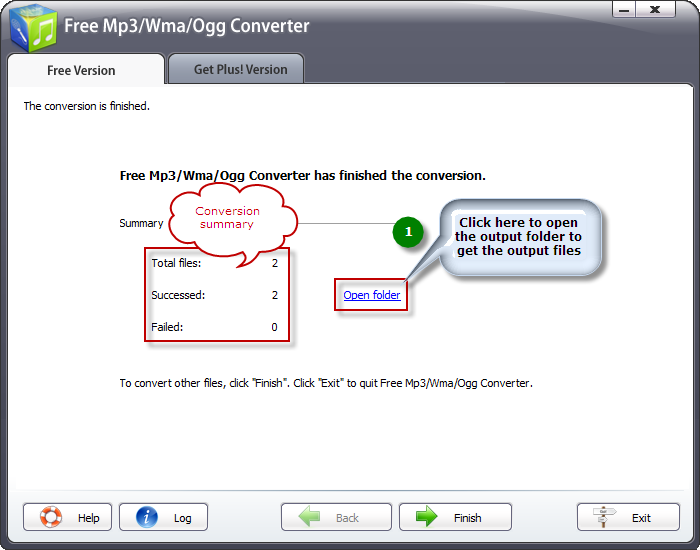
the computer when conversion is done. When the progress is complete,
you can see a brief report. Click "Open folder" to get your
MP3 files.
|